Choose which Telegram and Discord channels collony.ai works in, what the bot does in each one, and which channel gets moderator reports.
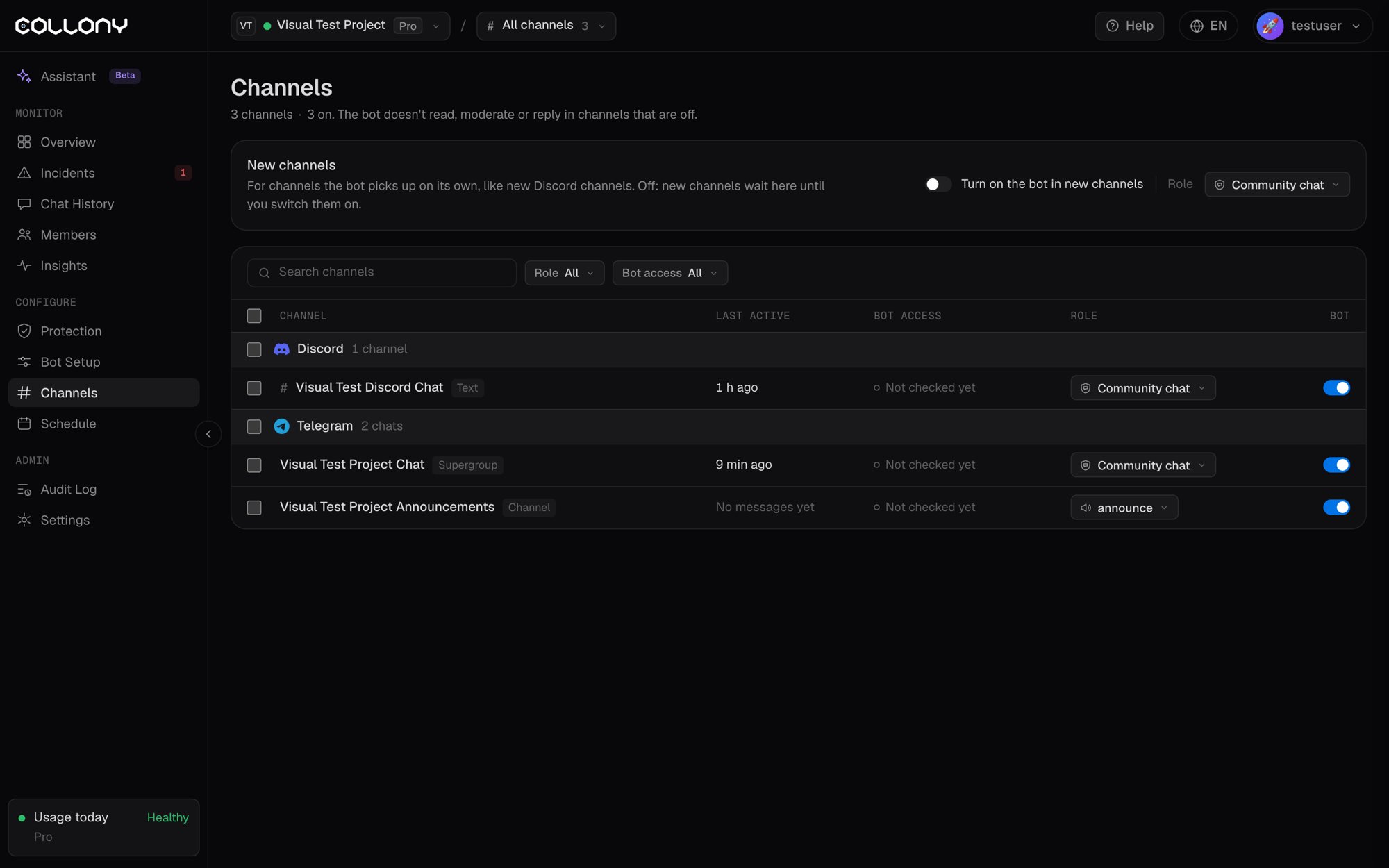
The Channels page lists every channel the bot can see in the current project, grouped by platform. For each one you choose whether the bot is on and what role the channel plays.The bot does not read, moderate or reply in channels that are off. It stays in the group or server but does nothing there.
Channel roles
Role
Protects
Replies
Community chat (default): where members talk. The bot protects the chat and answers questions.
Yes
Yes
Security only: the bot removes spam and scams, mutes and bans, and never replies.
Yes
No
Chat & support only: the bot answers questions and chats. It does not moderate here.
No
Yes
Moderator notifications: a private channel for your mods. The bot posts reports of what it deleted, muted or banned.
No
Posts reports
Click the role next to a channel to change it. In channels where the bot replies, replies also follow your Schedule and the chat switches in Settings.
Set announcement and off-topic channels to Security only so the bot keeps them clean without joining the conversation. Create a private channel for your team and set it to Moderator notifications to follow what the bot does in real time.
Turning channels on and off
Switch a channel on or off from its row. To change several channels at once, select them and use Set role…, Turn on or Turn off.
New channels
The New channels settings control channels the bot picks up later, for example a new Discord channel:
Turn on the bot in new channels: with this off, new channels wait on this page until you switch them on.
Role for new channels: the role new channels get, Community chat by default.
Filters
Filter the list by Role and Bot access (Full access, Limited, No access, Not checked yet). Each row also shows the channel type and when it was last active.
A channel with Limited or No access is missing permissions the bot needs. Moderation can fail there until you fix the bot’s permissions on the platform.
Last modified on November 17, 2026
Was this page helpful?
{"docsConfig":{"theme":"aspen","$schema":"https://mintlify.com/docs.json","name":"collony.ai","description":"AI-powered moderation and community intelligence for Telegram and Discord.","colors":{"primary":"#0073E6","light":"#4A97F0","dark":"#0066CC"},"logo":{"light":"https://mintcdn.com/collonyai/D8CSrntP4wIe3vQz/logo/collony-wordmark-ink.svg?fit=max\u0026auto=format\u0026n=D8CSrntP4wIe3vQz\u0026q=85\u0026s=237d099864d2b135de104e387eb0317f","dark":"https://mintcdn.com/collonyai/D8CSrntP4wIe3vQz/logo/collony-wordmark-white.svg?fit=max\u0026auto=format\u0026n=D8CSrntP4wIe3vQz\u0026q=85\u0026s=6220808b4120713c725feb26a8e92d85","href":"https://www.collony.ai"},"favicon":{"light":"https://mintcdn.com/collonyai/NX_vuINDj_iWNV3Y/favicon-ink.svg?fit=max\u0026auto=format\u0026n=NX_vuINDj_iWNV3Y\u0026q=85\u0026s=2bf24c0d86673aabc5c9f987e5cd6fe8","dark":"https://mintcdn.com/collonyai/NX_vuINDj_iWNV3Y/favicon-white.svg?fit=max\u0026auto=format\u0026n=NX_vuINDj_iWNV3Y\u0026q=85\u0026s=01964e7774f5f155d6e86863bd4112c7"},"appearance":{"strict":false},"background":{"color":{"light":"#F4F4FA","dark":"#08080B"}},"navbar":{"links":[]},"footer":{"socials":{"x":"https://x.com/collonybot","telegram":"https://t.me/collony_official","linkedin":"https://www.linkedin.com/company/collony","website":"https://www.collony.ai/","discord":"https://discord.com/invite/na6xcu7xV7"}},"search":{"prompt":"Search docs..."},"seo":{"metatags":{"canonical":"https://www.collony.ai/docs"}},"fonts":{"family":"Geist"},"icons":{"library":"lucide"},"errors":{"404":{"redirect":true}},"contextual":{"options":["copy","assistant"],"display":"header"},"thumbnails":{"preset":"classic","appearance":"dark","surface":"neutral","fonts":{"family":"Geist"},"eyebrow":{"source":"group","style":"plain","color":"#0073E6"}},"metadata":{"timestamp":true},"styling":{"latex":false},"navigation":{"languages":[{"language":"en","default":true,"href":"introduction"},{"language":"es","href":"es/introduction"},{"language":"fr","href":"fr/introduction"},{"language":"it","href":"it/introduction"},{"language":"hi","href":"hi/introduction"},{"language":"uk","href":"uk/introduction"},{"language":"zh-Hans","href":"zh-Hans/introduction"},{"language":"zh-Hant","href":"zh-Hant/introduction"},{"language":"ru","href":"ru/introduction"}]}},"deployment":{"deploymentMetadataValue":{"subdomain":"collonyai","hasAudioNarration":false,"actualSubdomain":"collonyai","customDomains":["www.collony.ai"],"gitSource":{"type":"github","owner":"collonybot","repo":"docs","deployBranch":"main","contentDirectory":"","isPrivate":false,"mountPath":"","label":""},"feedback":{"thumbs":true},"entitlements":{},"buildId":"6b040055173fddf89facc27f","clientVersion":"0.0.4340","searchFilterCounts":[{"language":"en","tag":"Protection","count":7},{"language":"en","tag":"Moderation","count":7},{"language":"es","tag":"Protección","count":7},{"language":"es","tag":"Moderación","count":7},{"language":"fr","tag":"Protection","count":7},{"language":"fr","tag":"Modération","count":7},{"language":"hi","tag":"सुरक्षा","count":7},{"language":"hi","tag":"मॉडरेशन","count":7},{"language":"it","tag":"Protezione","count":7},{"language":"it","tag":"Moderazione","count":7},{"language":"ru","tag":"Защита","count":7},{"language":"ru","tag":"Модерация","count":7},{"language":"uk","tag":"Захист","count":7},{"language":"uk","tag":"Модерація","count":7},{"language":"zh-Hans","tag":"防护","count":7},{"language":"zh-Hans","tag":"管理","count":7},{"language":"zh-Hant","tag":"防護","count":7},{"language":"zh-Hant","tag":"管理","count":7},{"language":"en","tag":"Getting Started","count":4},{"language":"en","tag":"Configuration","count":4},{"language":"es","tag":"Primeros pasos","count":4},{"language":"es","tag":"Configuración","count":4},{"language":"fr","tag":"Premiers pas","count":4},{"language":"fr","tag":"Configuration","count":4},{"language":"hi","tag":"शुरुआत करें","count":4},{"language":"hi","tag":"कॉन्फ़िगरेशन","count":4},{"language":"it","tag":"Per iniziare","count":4},{"language":"it","tag":"Configurazione","count":4},{"language":"ru","tag":"Начало работы","count":4},{"language":"ru","tag":"Настройка","count":4},{"language":"uk","tag":"Початок роботи","count":4},{"language":"uk","tag":"Налаштування","count":4},{"language":"zh-Hans","tag":"快速开始","count":4},{"language":"zh-Hans","tag":"配置","count":4},{"language":"zh-Hant","tag":"快速開始","count":4},{"language":"zh-Hant","tag":"設定","count":4},{"language":"en","tag":"AI tools","count":2},{"language":"en","tag":"Analytics","count":2},{"language":"es","tag":"Herramientas de IA","count":2},{"language":"es","tag":"Analítica","count":2},{"language":"fr","tag":"Outils IA","count":2},{"language":"fr","tag":"Analyses","count":2},{"language":"hi","tag":"AI टूल्स","count":2},{"language":"hi","tag":"एनालिटिक्स","count":2},{"language":"it","tag":"Strumenti IA","count":2},{"language":"it","tag":"Analisi","count":2},{"language":"ru","tag":"Инструменты ИИ","count":2},{"language":"ru","tag":"Аналитика","count":2},{"language":"uk","tag":"Інструменти ШІ","count":2},{"language":"uk","tag":"Аналітика","count":2},{"language":"zh-Hans","tag":"AI 工具","count":2},{"language":"zh-Hans","tag":"分析","count":2},{"language":"zh-Hant","tag":"AI 工具","count":2},{"language":"zh-Hant","tag":"分析","count":2}]},"assistantConfig":{},"basePath":"/docs","hasChatPermissions":false,"hasWebMcpPermissions":false,"toggles":[{"name":"kill-isr","enabled":true,"variant":{"name":"disabled","enabled":false,"feature_enabled":true},"impressionData":false},{"name":"custom-rbac-roles","enabled":true,"variant":{"name":"disabled","enabled":false,"feature_enabled":true},"impressionData":false},{"name":"agent-mintlify-slack","enabled":true,"variant":{"name":"disabled","enabled":false,"feature_enabled":true},"impressionData":false},{"name":"agent-integrations-settings","enabled":true,"variant":{"name":"disabled","enabled":false,"feature_enabled":true},"impressionData":false},{"name":"rbac-expansion","enabled":true,"variant":{"name":"disabled","enabled":false,"feature_enabled":true},"impressionData":false},{"name":"automations-pr-grouping","enabled":true,"variant":{"name":"disabled","enabled":false,"feature_enabled":true},"impressionData":false},{"name":"custom-prefix","enabled":true,"variant":{"name":"disabled","enabled":false,"feature_enabled":true},"impressionData":false},{"name":"analytics-v7","enabled":true,"variant":{"name":"disabled","enabled":false,"feature_enabled":true},"impressionData":false},{"name":"user-flows-analytics","enabled":true,"variant":{"name":"disabled","enabled":false,"feature_enabled":true},"impressionData":false},{"name":"no-publish-flow","enabled":true,"variant":{"name":"disabled","enabled":false,"feature_enabled":true},"impressionData":false},{"name":"snapshot-serving-live","enabled":true,"variant":{"name":"disabled","enabled":false,"feature_enabled":true},"impressionData":false},{"name":"stripTemperatureMiddleware","enabled":true,"variant":{"name":"disabled","enabled":false,"feature_enabled":true},"impressionData":false},{"name":"support-platform-pylon-zendesk","enabled":true,"variant":{"name":"disabled","enabled":false,"feature_enabled":true},"impressionData":false},{"name":"snapshot-serving","enabled":true,"variant":{"name":"disabled","enabled":false,"feature_enabled":true},"impressionData":false},{"name":"instant-rollback","enabled":true,"variant":{"name":"disabled","enabled":false,"feature_enabled":true},"impressionData":false},{"name":"granular-notifications-server","enabled":true,"variant":{"name":"disabled","enabled":false,"feature_enabled":true},"impressionData":false},{"name":"granular-notifications","enabled":true,"variant":{"name":"disabled","enabled":false,"feature_enabled":true},"impressionData":false},{"name":"automations-fable","enabled":true,"variant":{"name":"disabled","enabled":false,"feature_enabled":true},"impressionData":false},{"name":"fixed-ai-action-pricing","enabled":true,"variant":{"name":"disabled","enabled":false,"feature_enabled":true},"impressionData":false},{"name":"site-roles","enabled":true,"variant":{"name":"disabled","enabled":false,"feature_enabled":true},"impressionData":false},{"name":"automation-resolve-merge-conflict","enabled":true,"variant":{"name":"disabled","enabled":false,"feature_enabled":true},"impressionData":false},{"name":"scoped-publishing","enabled":true,"variant":{"name":"disabled","enabled":false,"feature_enabled":true},"impressionData":false},{"name":"mintql","enabled":true,"variant":{"name":"disabled","enabled":false,"feature_enabled":true},"impressionData":false},{"name":"page-level-analytics","enabled":true,"variant":{"name":"disabled","enabled":false,"feature_enabled":true},"impressionData":false},{"name":"editor-version-history-v2","enabled":true,"variant":{"name":"disabled","enabled":false,"feature_enabled":true},"impressionData":false},{"name":"billing-page-v2","enabled":true,"variant":{"name":"disabled","enabled":false,"feature_enabled":true},"impressionData":false},{"name":"full-page-search","enabled":true,"variant":{"name":"disabled","enabled":false,"feature_enabled":true},"impressionData":false},{"name":"workspace-projects","enabled":true,"variant":{"name":"disabled","enabled":false,"feature_enabled":true},"impressionData":false},{"name":"fork-pr-previews","enabled":true,"variant":{"name":"disabled","enabled":false,"feature_enabled":true},"impressionData":false},{"name":"revalidation-jwt","enabled":true,"variant":{"name":"disabled","enabled":false,"feature_enabled":true},"impressionData":false},{"name":"hobby-abuse-scan","enabled":true,"variant":{"name":"disabled","enabled":false,"feature_enabled":true},"impressionData":false},{"name":"dashboard-inbox","enabled":true,"variant":{"name":"disabled","enabled":false,"feature_enabled":true},"impressionData":false},{"name":"turbopuffer-dual-write","enabled":true,"variant":{"name":"disabled","enabled":false,"feature_enabled":true},"impressionData":false},{"name":"approve-review-flow","enabled":true,"variant":{"name":"disabled","enabled":false,"feature_enabled":true},"impressionData":false},{"name":"editor-metadata","enabled":true,"variant":{"name":"disabled","enabled":false,"feature_enabled":true},"impressionData":false},{"name":"turbopuffer-serve","enabled":true,"variant":{"name":"disabled","enabled":false,"feature_enabled":true},"impressionData":false},{"name":"live-agents","enabled":true,"variant":{"name":"disabled","enabled":false,"feature_enabled":true},"impressionData":false},{"name":"starter-pricing","enabled":true,"variant":{"name":"control","enabled":true,"payload":{"type":"string","value":"control"},"feature_enabled":true},"impressionData":false},{"name":"llms-txt-v2","enabled":true,"variant":{"name":"disabled","enabled":false,"feature_enabled":true},"impressionData":false},{"name":"wildcard-email-auth","enabled":true,"variant":{"name":"disabled","enabled":false,"feature_enabled":true},"impressionData":false}],"starterQuestions":[],"googleFontsInlined":true},"customCss":[]}
{"page":{"pagePath":"channels","slug":"/channels","pageMetadata":{"title":"Channels","description":"Choose which Telegram and Discord channels collony.ai works in, what the bot does in each one, and which channel gets moderator reports.","mode":"default","href":"/channels"},"description":{"compiledSource":"\"use strict\";\nconst {jsx: _jsx} = arguments[0];\nconst {useMDXComponents: _provideComponents} = arguments[0];\nfunction _createMdxContent(props) {\n const _components = {\n p: \"p\",\n ..._provideComponents(),\n ...props.components\n };\n return _jsx(_components.p, {\n children: \"Choose which Telegram and Discord channels collony.ai works in, what the bot does in each one, and which channel gets moderator reports.\"\n });\n}\nfunction MDXContent(props = {}) {\n const {wrapper: MDXLayout} = {\n ..._provideComponents(),\n ...props.components\n };\n return MDXLayout ? _jsx(MDXLayout, {\n ...props,\n children: _jsx(_createMdxContent, {\n ...props\n })\n }) : _createMdxContent(props);\n}\nreturn {\n default: MDXContent\n};\n","frontmatter":{},"scope":{}},"pageType":"default","mdx":{"mdxSource":{"compiledSource":"\"use strict\";const{Fragment:_Fragment,jsx:_jsx,jsxs:_jsxs}=arguments[0];const{useMDXComponents:_provideComponents}=arguments[0];function _createMdxContent(props){const _components={a:`a`,li:`li`,p:`p`,strong:`strong`,tbody:`tbody`,td:`td`,th:`th`,thead:`thead`,tr:`tr`,ul:`ul`,..._provideComponents(),...props.components},{Frame,Heading,OptimizedImage,Table,Tip,Warning}=_components;if(!Frame)_missingMdxReference(`Frame`,true);if(!Heading)_missingMdxReference(`Heading`,true);if(!OptimizedImage)_missingMdxReference(`OptimizedImage`,true);if(!Table)_missingMdxReference(`Table`,true);if(!Tip)_missingMdxReference(`Tip`,true);if(!Warning)_missingMdxReference(`Warning`,true);return _jsxs(_Fragment,{children:[_jsx(_components.p,{children:`The Channels page lists every channel the bot can see in the current project, grouped by platform. For each one you choose whether the bot is on and what role the channel plays.`}),`\n`,_jsx(_components.p,{children:`The bot does not read, moderate or reply in channels that are off. It stays in the group or server but does nothing there.`}),`\n`,_jsx(Frame,{children:_jsx(OptimizedImage,{src:`https://mintcdn.com/collonyai/lKiNRX1ZXqxzqSsi/images/app/channels.png?fit=max\u0026auto=format\u0026n=lKiNRX1ZXqxzqSsi\u0026q=85\u0026s=79195e75ee4d49df6d3461ca6303717e`,alt:`Channels page with new channel settings, filters and the channel list`,\"data-og-width\":`2000`,width:`2000`,\"data-og-height\":`1250`,height:`1250`,\"data-path\":`images/app/channels.png`,\"data-optimize\":`true`,\"data-opv\":`3`,srcset:`https://mintcdn.com/collonyai/lKiNRX1ZXqxzqSsi/images/app/channels.png?w=280\u0026fit=max\u0026auto=format\u0026n=lKiNRX1ZXqxzqSsi\u0026q=85\u0026s=5eee857db9e3eee4fab44af1934a18ac 280w, https://mintcdn.com/collonyai/lKiNRX1ZXqxzqSsi/images/app/channels.png?w=560\u0026fit=max\u0026auto=format\u0026n=lKiNRX1ZXqxzqSsi\u0026q=85\u0026s=2d29c8e4004573b99dfd124b148e5130 560w, https://mintcdn.com/collonyai/lKiNRX1ZXqxzqSsi/images/app/channels.png?w=840\u0026fit=max\u0026auto=format\u0026n=lKiNRX1ZXqxzqSsi\u0026q=85\u0026s=23bd369e4398305d1a5471c33eed6f6a 840w, https://mintcdn.com/collonyai/lKiNRX1ZXqxzqSsi/images/app/channels.png?w=1100\u0026fit=max\u0026auto=format\u0026n=lKiNRX1ZXqxzqSsi\u0026q=85\u0026s=2ba3c4f9cb3b3939988ff7d1b75857bc 1100w, https://mintcdn.com/collonyai/lKiNRX1ZXqxzqSsi/images/app/channels.png?w=1650\u0026fit=max\u0026auto=format\u0026n=lKiNRX1ZXqxzqSsi\u0026q=85\u0026s=d6a17c018e8264852aa4a9ff24d95deb 1650w, https://mintcdn.com/collonyai/lKiNRX1ZXqxzqSsi/images/app/channels.png?w=2500\u0026fit=max\u0026auto=format\u0026n=lKiNRX1ZXqxzqSsi\u0026q=85\u0026s=7f5eb93250654c5152b7b72fb057c1a5 2500w`})}),`\n`,_jsx(Heading,{level:`2`,id:`channel-roles`,children:`Channel roles`}),`\n`,_jsxs(Table,{children:[_jsx(_components.thead,{children:_jsxs(_components.tr,{children:[_jsx(_components.th,{children:`Role`}),_jsx(_components.th,{children:`Protects`}),_jsx(_components.th,{children:`Replies`})]})}),_jsxs(_components.tbody,{children:[_jsxs(_components.tr,{children:[_jsxs(_components.td,{children:[_jsx(_components.strong,{children:`Community chat`}),` (default): where members talk. The bot protects the chat and answers questions.`]}),_jsx(_components.td,{children:`Yes`}),_jsx(_components.td,{children:`Yes`})]}),_jsxs(_components.tr,{children:[_jsxs(_components.td,{children:[_jsx(_components.strong,{children:`Security only`}),`: the bot removes spam and scams, mutes and bans, and never replies.`]}),_jsx(_components.td,{children:`Yes`}),_jsx(_components.td,{children:`No`})]}),_jsxs(_components.tr,{children:[_jsxs(_components.td,{children:[_jsx(_components.strong,{children:`Chat \u0026 support only`}),`: the bot answers questions and chats. It does not moderate here.`]}),_jsx(_components.td,{children:`No`}),_jsx(_components.td,{children:`Yes`})]}),_jsxs(_components.tr,{children:[_jsxs(_components.td,{children:[_jsx(_components.strong,{children:`Moderator notifications`}),`: a private channel for your mods. The bot posts reports of what it deleted, muted or banned.`]}),_jsx(_components.td,{children:`No`}),_jsx(_components.td,{children:`Posts reports`})]})]})]}),`\n`,_jsxs(_components.p,{children:[`Click the role next to a channel to change it. In channels where the bot replies, replies also follow your `,_jsx(_components.a,{href:`/schedule`,children:`Schedule`}),` and the chat switches in `,_jsx(_components.a,{href:`/settings#assistant`,children:`Settings`}),`.`]}),`\n`,_jsx(Tip,{children:_jsxs(_components.p,{children:[`Set announcement and off-topic channels to `,_jsx(_components.strong,{children:`Security only`}),` so the bot keeps them clean without joining the conversation. Create a private channel for your team and set it to `,_jsx(_components.strong,{children:`Moderator notifications`}),` to follow what the bot does in real time.`]})}),`\n`,_jsx(Heading,{level:`2`,id:`turning-channels-on-and-off`,children:`Turning channels on and off`}),`\n`,_jsxs(_components.p,{children:[`Switch a channel on or off from its row. To change several channels at once, select them and use `,_jsx(_components.strong,{children:`Set role…`}),`, `,_jsx(_components.strong,{children:`Turn on`}),` or `,_jsx(_components.strong,{children:`Turn off`}),`.`]}),`\n`,_jsx(Heading,{level:`2`,id:`new-channels`,children:`New channels`}),`\n`,_jsxs(_components.p,{children:[`The `,_jsx(_components.strong,{children:`New channels`}),` settings control channels the bot picks up later, for example a new Discord channel:`]}),`\n`,_jsxs(_components.ul,{children:[`\n`,_jsxs(_components.li,{children:[_jsx(_components.strong,{children:`Turn on the bot in new channels`}),`: with this off, new channels wait on this page until you switch them on.`]}),`\n`,_jsxs(_components.li,{children:[_jsx(_components.strong,{children:`Role for new channels`}),`: the role new channels get, Community chat by default.`]}),`\n`]}),`\n`,_jsx(Heading,{level:`2`,id:`filters`,children:`Filters`}),`\n`,_jsxs(_components.p,{children:[`Filter the list by `,_jsx(_components.strong,{children:`Role`}),` and `,_jsx(_components.strong,{children:`Bot access`}),` (Full access, Limited, No access, Not checked yet). Each row also shows the channel type and when it was last active.`]}),`\n`,_jsx(Warning,{children:_jsxs(_components.p,{children:[`A channel with `,_jsx(_components.strong,{children:`Limited`}),` or `,_jsx(_components.strong,{children:`No access`}),` is missing permissions the bot needs. Moderation can fail there until you fix the bot’s permissions on the platform.`]})})]})}function MDXContent(props={}){const{wrapper:MDXLayout}={..._provideComponents(),...props.components};return MDXLayout?_jsx(MDXLayout,{...props,children:_jsx(_createMdxContent,{...props})}):_createMdxContent(props)}return{default:MDXContent};function _missingMdxReference(id,component){throw new Error(`Expected `+(component?`component`:`object`)+\" `\"+id+\"` to be defined: you likely forgot to import, pass, or provide it.\")}","frontmatter":{},"scope":{"config":{},"pageMetadata":{"title":"Channels","description":"Choose which Telegram and Discord channels collony.ai works in, what the bot does in each one, and which channel gets moderator reports.","mode":"default","href":"/channels"}}},"mdxSourceWithNoJs":null},"mdxExtracts":{"tableOfContents":[{"title":"Channel roles","slug":"channel-roles","depth":2,"children":[]},{"title":"Turning channels on and off","slug":"turning-channels-on-and-off","depth":2,"children":[]},{"title":"New channels","slug":"new-channels","depth":2,"children":[]},{"title":"Filters","slug":"filters","depth":2,"children":[]}],"codeExamples":{}},"jsLinks":[],"subdomain":"collonyai","siteName":"collony.ai","title":"Channels - collony.ai","contextualStarterQuestions":[],"navMaps":{"firstHrefInVersion":{},"firstHrefInLanguage":{"en":{"href":"/channels","matchLevel":0},"es":{"href":"/es/channels","matchLevel":1},"fr":{"href":"/fr/channels","matchLevel":1},"it":{"href":"/it/channels","matchLevel":1},"hi":{"href":"/hi/channels","matchLevel":1},"uk":{"href":"/uk/channels","matchLevel":1},"zh-Hans":{"href":"/zh-Hans/channels","matchLevel":1},"zh-Hant":{"href":"/zh-Hant/channels","matchLevel":1},"ru":{"href":"/ru/channels","matchLevel":1}}},"lastModified":"2026-11-17T20:49:34.975Z","gitLastModified":"2026-11-17T20:49:24.000Z","originalFileLocation":"channels.mdx","locale":"en"},"headHtml":"\u003cscript data-mint-head>(function(){var d=document.documentElement,p=null;if(!p){try{p=localStorage.getItem(\"isDarkMode\")}catch(e){}if(p==='true')p='dark';else if(p==='false')p='light';if(p!=='light'\u0026\u0026p!=='dark'\u0026\u0026p!=='system')p=\"system\"}var r=p==='system'?(matchMedia(\"(prefers-color-scheme: dark)\").matches?'dark':'light'):p;d.classList.remove(r==='dark'?'light':'dark');d.classList.add(r);d.setAttribute(\"data-theme-preference\",p)})();\u003c/script>\u003cmeta data-mint-head name=\"description\" content=\"Choose which Telegram and Discord channels collony.ai works in, what the bot does in each one, and which channel gets moderator reports.\">\u003cmeta data-mint-head name=\"application-name\" content=\"collony.ai\">\u003cmeta data-mint-head name=\"generator\" content=\"Mintlify\">\u003clink data-mint-head rel=\"icon\" type=\"image/png\" sizes=\"192x192\" href=\"/docs/mintlify-assets/_mintlify/favicons/collonyai/Uj1hqqLLTJbTfRDh/_generated/favicon/android-chrome-192x192.png\" media=\"(prefers-color-scheme: light)\">\u003clink data-mint-head rel=\"apple-touch-icon\" type=\"image/png\" sizes=\"180x180\" href=\"/docs/mintlify-assets/_mintlify/favicons/collonyai/Uj1hqqLLTJbTfRDh/_generated/favicon/apple-touch-icon.png\">\u003clink data-mint-head rel=\"icon\" type=\"image/png\" sizes=\"16x16\" href=\"/docs/mintlify-assets/_mintlify/favicons/collonyai/Uj1hqqLLTJbTfRDh/_generated/favicon/favicon-16x16.png\" media=\"(prefers-color-scheme: light)\">\u003clink data-mint-head rel=\"icon\" type=\"image/png\" sizes=\"32x32\" href=\"/docs/mintlify-assets/_mintlify/favicons/collonyai/Uj1hqqLLTJbTfRDh/_generated/favicon/favicon-32x32.png\" media=\"(prefers-color-scheme: light)\">\u003clink data-mint-head rel=\"shortcut icon\" type=\"image/x-icon\" href=\"/docs/mintlify-assets/_mintlify/favicons/collonyai/Uj1hqqLLTJbTfRDh/_generated/favicon/favicon.ico\" media=\"(prefers-color-scheme: light)\">\u003clink data-mint-head rel=\"icon\" type=\"image/png\" sizes=\"192x192\" href=\"/docs/mintlify-assets/_mintlify/favicons/collonyai/Uj1hqqLLTJbTfRDh/_generated/favicon-dark/android-chrome-192x192.png\" media=\"(prefers-color-scheme: dark)\">\u003clink data-mint-head rel=\"icon\" type=\"image/png\" sizes=\"16x16\" href=\"/docs/mintlify-assets/_mintlify/favicons/collonyai/Uj1hqqLLTJbTfRDh/_generated/favicon-dark/favicon-16x16.png\" media=\"(prefers-color-scheme: dark)\">\u003clink data-mint-head rel=\"icon\" type=\"image/png\" sizes=\"32x32\" href=\"/docs/mintlify-assets/_mintlify/favicons/collonyai/Uj1hqqLLTJbTfRDh/_generated/favicon-dark/favicon-32x32.png\" media=\"(prefers-color-scheme: dark)\">\u003clink data-mint-head rel=\"shortcut icon\" type=\"image/x-icon\" href=\"/docs/mintlify-assets/_mintlify/favicons/collonyai/Uj1hqqLLTJbTfRDh/_generated/favicon-dark/favicon.ico\" media=\"(prefers-color-scheme: dark)\">\u003cmeta data-mint-head property=\"og:title\" content=\"Channels - collony.ai\">\u003cmeta data-mint-head property=\"og:description\" content=\"Choose which Telegram and Discord channels collony.ai works in, what the bot does in each one, and which channel gets moderator reports.\">\u003cmeta data-mint-head property=\"og:site_name\" content=\"collony.ai\">\u003cmeta data-mint-head property=\"og:url\" content=\"https://www.collony.ai/docs/channels\">\u003cmeta data-mint-head property=\"og:type\" content=\"website\">\u003cmeta data-mint-head property=\"og:image\" content=\"https://collonyai.mintlify.site/docs/_mintlify/api/og/v2?division=Configuration\u0026amp;title=Channels\u0026amp;description=Choose+which+Telegram+and+Discord+channels+collony.ai+works+in%2C+what+the+bot+does+in+each+one%2C+and+which+channel+gets+moderator+reports.\u0026amp;theme=4839babfa306857e9fe15e06\u0026amp;signature=ba8f35b0875a124b1ae9dfdae1371511fa1d0474b9fe6c1c809961b96ee15b05\">\u003cmeta data-mint-head property=\"og:image:width\" content=\"1200\">\u003cmeta data-mint-head property=\"og:image:height\" content=\"630\">\u003cmeta data-mint-head name=\"twitter:card\" content=\"summary_large_image\">\u003cmeta data-mint-head name=\"twitter:title\" content=\"Channels - collony.ai\">\u003cmeta data-mint-head name=\"twitter:description\" content=\"Choose which Telegram and Discord channels collony.ai works in, what the bot does in each one, and which channel gets moderator reports.\">\u003cmeta data-mint-head name=\"twitter:image\" content=\"https://collonyai.mintlify.site/docs/_mintlify/api/og/v2?division=Configuration\u0026amp;title=Channels\u0026amp;description=Choose+which+Telegram+and+Discord+channels+collony.ai+works+in%2C+what+the+bot+does+in+each+one%2C+and+which+channel+gets+moderator+reports.\u0026amp;theme=4839babfa306857e9fe15e06\u0026amp;signature=ba8f35b0875a124b1ae9dfdae1371511fa1d0474b9fe6c1c809961b96ee15b05\">\u003cmeta data-mint-head name=\"twitter:image:width\" content=\"1200\">\u003cmeta data-mint-head name=\"twitter:image:height\" content=\"630\">\u003cmeta data-mint-head name=\"msapplication-config\" content=\"/docs/mintlify-assets/_mintlify/favicons/collonyai/Uj1hqqLLTJbTfRDh/_generated/favicon/browserconfig.xml\">\u003cmeta data-mint-head name=\"apple-mobile-web-app-title\" content=\"collony.ai\">\u003cmeta data-mint-head name=\"msapplication-TileColor\" content=\"#0073E6\">\u003clink data-mint-head rel=\"canonical\" href=\"https://www.collony.ai/docs/channels\">\u003clink data-mint-head rel=\"alternate\" type=\"application/xml\" href=\"/docs/sitemap.xml\">\u003clink data-mint-head rel=\"alternate\" type=\"text/markdown\" href=\"/docs/channels.md\">\u003clink data-mint-head rel=\"alternate\" hreflang=\"en\" href=\"https://www.collony.ai/docs/channels\">\u003clink data-mint-head rel=\"alternate\" hreflang=\"es\" href=\"https://www.collony.ai/docs/es/channels\">\u003clink data-mint-head rel=\"alternate\" hreflang=\"fr\" href=\"https://www.collony.ai/docs/fr/channels\">\u003clink data-mint-head rel=\"alternate\" hreflang=\"it\" href=\"https://www.collony.ai/docs/it/channels\">\u003clink data-mint-head rel=\"alternate\" hreflang=\"hi\" href=\"https://www.collony.ai/docs/hi/channels\">\u003clink data-mint-head rel=\"alternate\" hreflang=\"uk\" href=\"https://www.collony.ai/docs/uk/channels\">\u003clink data-mint-head rel=\"alternate\" hreflang=\"zh-Hans\" href=\"https://www.collony.ai/docs/zh-Hans/channels\">\u003clink data-mint-head rel=\"alternate\" hreflang=\"zh-Hant\" href=\"https://www.collony.ai/docs/zh-Hant/channels\">\u003clink data-mint-head rel=\"alternate\" hreflang=\"ru\" href=\"https://www.collony.ai/docs/ru/channels\">\u003clink data-mint-head rel=\"alternate\" hreflang=\"x-default\" href=\"https://www.collony.ai/docs/channels\">\u003cscript data-mint-head type=\"application/ld+json\">{\"@context\":\"https://schema.org\",\"@graph\":[{\"@type\":\"Organization\",\"@id\":\"https://www.collony.ai/#organization\",\"name\":\"collony.ai\",\"url\":\"https://www.collony.ai\",\"logo\":{\"@type\":\"ImageObject\",\"url\":\"https://mintcdn.com/collonyai/D8CSrntP4wIe3vQz/logo/collony-wordmark-ink.svg?fit=max\u0026auto=format\u0026n=D8CSrntP4wIe3vQz\u0026q=85\u0026s=237d099864d2b135de104e387eb0317f\"}},{\"@type\":\"WebSite\",\"@id\":\"https://www.collony.ai/docs#website\",\"name\":\"collony.ai\",\"url\":\"https://www.collony.ai/docs\",\"publisher\":{\"@id\":\"https://www.collony.ai/#organization\"}},{\"@type\":\"WebPage\",\"@id\":\"https://www.collony.ai/docs/channels#webpage\",\"url\":\"https://www.collony.ai/docs/channels\",\"name\":\"Channels\",\"description\":\"Choose which Telegram and Discord channels collony.ai works in, what the bot does in each one, and which channel gets moderator reports.\",\"dateModified\":\"2026-11-17T20:49:24.000Z\",\"isPartOf\":{\"@id\":\"https://www.collony.ai/docs#website\"},\"breadcrumb\":{\"@id\":\"https://www.collony.ai/docs/channels#breadcrumb\"}},{\"@type\":\"BreadcrumbList\",\"@id\":\"https://www.collony.ai/docs/channels#breadcrumb\",\"itemListElement\":[{\"@type\":\"ListItem\",\"position\":1,\"name\":\"Configuration\",\"item\":\"https://www.collony.ai/docs/bot-setup\"},{\"@type\":\"ListItem\",\"position\":2,\"name\":\"Channels\",\"item\":\"https://www.collony.ai/docs/channels\"}]},{\"@type\":[\"Article\",\"TechArticle\"],\"@id\":\"https://www.collony.ai/docs/channels#article\",\"headline\":\"Channels\",\"name\":\"Channels\",\"description\":\"Choose which Telegram and Discord channels collony.ai works in, what the bot does in each one, and which channel gets moderator reports.\",\"url\":\"https://www.collony.ai/docs/channels\",\"mainEntityOfPage\":{\"@id\":\"https://www.collony.ai/docs/channels#webpage\"},\"dateModified\":\"2026-11-17T20:49:24.000Z\",\"publisher\":{\"@id\":\"https://www.collony.ai/#organization\"},\"isPartOf\":{\"@id\":\"https://www.collony.ai/docs#website\"}}]}\u003c/script>\u003cscript data-mint-head type=\"application/ld+json\">{\"@context\":\"https://schema.org\",\"@type\":\"WebSite\",\"name\":\"collony.ai\",\"publisher\":{\"@type\":\"Organization\",\"name\":\"collony.ai\"},\"provider\":{\"@type\":\"Organization\",\"name\":\"Mintlify\",\"url\":\"https://mintlify.com\"}}\u003c/script>","agentPointerHref":"/docs/channels.md","siteName":"collony.ai","nav":{"global":null,"languages":[{"language":"en","default":true,"groups":[{"group":"Getting Started","pages":[{"title":"Introduction","href":"/introduction"},{"title":"Login","href":"/login"},{"title":"Projects","href":"/projects"},{"title":"Billing","href":"/billing"}]},{"group":"Configuration","pages":[{"title":"Bot Setup","description":"Give the collony.ai bot what it needs to answer and moderate well: knowledge base, project about and agent personality.","href":"/bot-setup"},{"title":"Channels","mode":"default","href":"/channels"},{"title":"Schedule","description":"Set what the collony.ai bot does and when: moderation only, moderation with chat replies, or a custom weekly schedule.","href":"/schedule"},{"title":"Settings","href":"/settings"}]},{"group":"Protection","pages":[{"title":"Protection","href":"/protection"},{"title":"AI rules","href":"/ai-rules"},{"title":"Enforcement and filters","href":"/enforcement"},{"title":"Blocklists","href":"/blocklists"},{"title":"Impersonation","href":"/impersonation"},{"title":"Surge Guard","href":"/surge-guard"},{"title":"Verification","href":"/verification"}]},{"group":"Moderation","pages":[{"title":"Incidents","href":"/incidents"},{"title":"Chat History","href":"/chat-history"},{"title":"Message details","href":"/message"},{"title":"Members","href":"/members"},{"title":"Member Details","href":"/member-details"},{"title":"Audit Log","href":"/audit-log"},{"title":"Chat commands","href":"/chat-commands"}]},{"group":"Analytics","pages":[{"title":"Overview","href":"/overview"},{"title":"Insights","href":"/insights"}]},{"group":"AI tools","pages":[{"title":"Assistant","tag":"Beta","href":"/assistant"},{"title":"AI apps","href":"/ai-apps"}]}]},{"language":"es","pages":[{"title":"es","href":"/es/channels"}]},{"language":"fr","pages":[{"title":"fr","href":"/fr/channels"}]},{"language":"it","pages":[{"title":"it","href":"/it/channels"}]},{"language":"hi","pages":[{"title":"hi","href":"/hi/channels"}]},{"language":"uk","pages":[{"title":"uk","href":"/uk/channels"}]},{"language":"zh-Hans","pages":[{"title":"zh-Hans","href":"/zh-Hans/channels"}]},{"language":"zh-Hant","pages":[{"title":"zh-Hant","href":"/zh-Hant/channels"}]},{"language":"ru","pages":[{"title":"ru","href":"/ru/channels"}]}]},"basePath":"","title":"Channels - collony.ai","deploymentId":"dpl_3UWrZQodFHfxeNZNwJGtAN3LFPAW","buildId":"dpl_3UWrZQodFHfxeNZNwJGtAN3LFPAW","dynamics":["07c022d89b","a74be98ba7"],"chunks":["Frame-B7SI-EuS.js","DynamicMarkdown-ml2SNL31.js","zoom-image-lightbox-CRFNV0i5.js","lightbox-handle-r17bVUz3.js"]}