

Before you start
You need:- A collony.ai account with access to at least one project
- One of these: Claude, ChatGPT, Claude Code, Cursor or VS Code
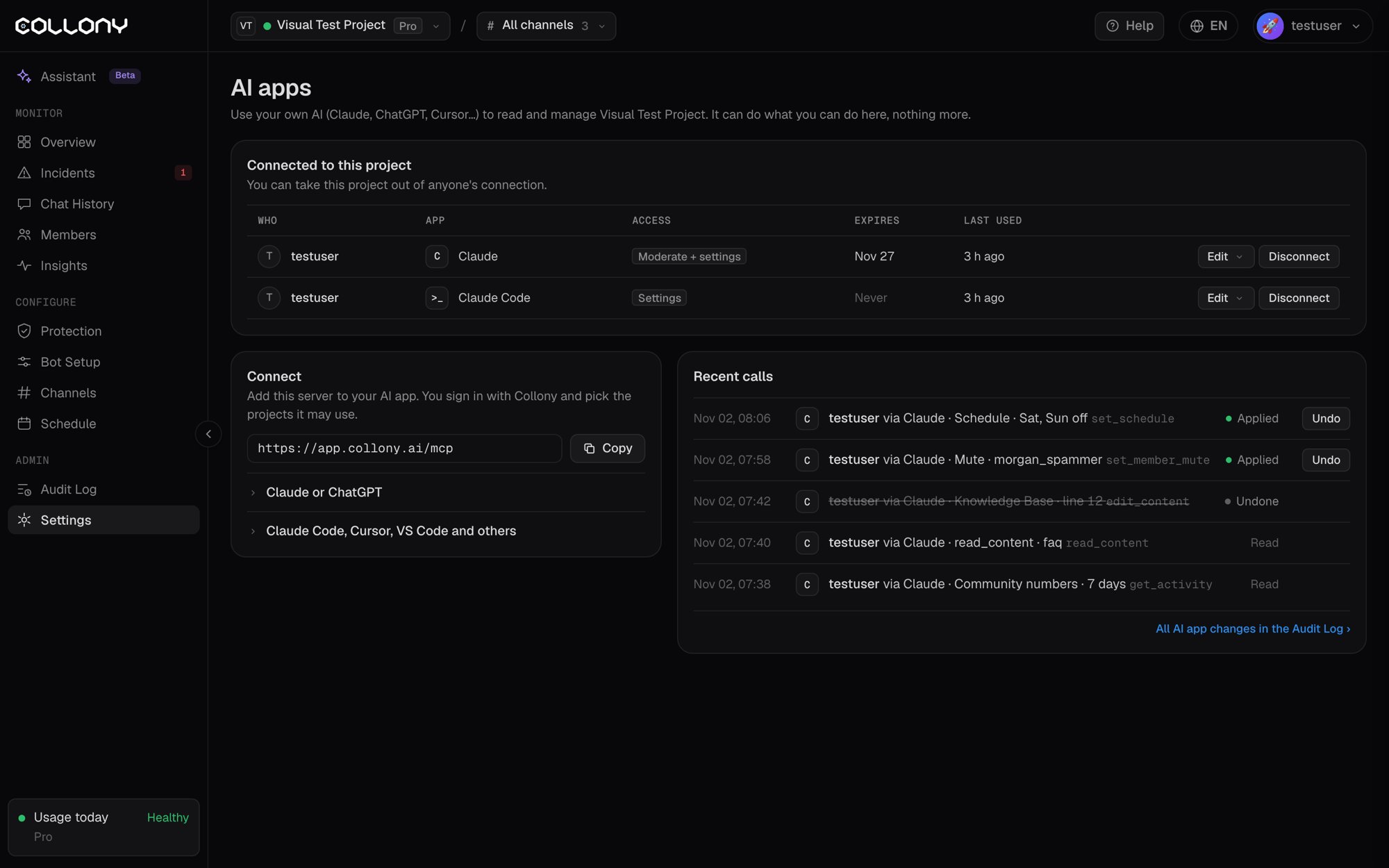
- The server URL:
Connect your AI app
Pick your app and follow the steps.- Claude
- ChatGPT
- Claude Code
- Cursor
- VS Code
1
Open Connectors
In Claude, go to Settings, then Connectors, and click Add custom connector.
2
Add collony.ai
Name it Collony and paste the server URL:
https://app.collony.ai/mcp. Click Add.3
Connect
Click Connect. A collony.ai window opens. Sign in if you are asked to.
4
Choose projects and access
Pick the projects Claude may use and what it may do (see Choose what the app may do). Click Save. You are sent back to Claude.
5
Try it
Start a new chat and ask: “Using Collony, what happened in my community this week?”
Choose what the app may do
When you connect, you choose the access for that app. Start small. You can change it any time.
You also set:
- Limit mutes and bans: the most mutes and bans the app can make per hour, for example 20. It stops a confused or tricked AI from sweeping your chat.
- Expires: 30 days, 90 days, 1 year or never. You get a warning 7 days before access ends.
Things to ask
Check on your community
Check on your community
- “What happened in my community this week?”
- “Show me today’s incidents and what the bot did.”
- “Which questions went unanswered in the last 7 days?”
- “Who are the most active members this month?”
Moderate
Moderate
- “Find the member posting airdrop links and mute them for 24 hours.”
- “Show the messages from @username in the last day.”
Change settings
Change settings
- “Turn off chat replies on Saturday and Sunday.”
- “Turn on Surge Guard for the main chat.”
- “Block the domain example-scam.xyz.”
Update what the bot knows
Update what the bot knows
- “Our launch moved to March 14. Update the knowledge base.”
- “Add a FAQ answer: the team never DMs first.”
Post as the bot
Post as the bot
- “Post a reminder in the main chat that admins never DM first.”
- “Schedule an AMA announcement for Friday at 14:00 UTC.”
See and undo what it did
Open Settings, then Connect or manage AI apps. Under Recent calls you see every call an app made in the project: who, which app, what it did, and whether it was applied.- Click Undo on any change to revert it.
- Every change is also in the Audit Log, marked with the app’s name.
- Messages an app posts as the bot show in Chat History as sent via that app.
Manage or disconnect
The AI apps page lists every app connected to the project, with who connected it, its access, when it expires and when it was last used.- Edit changes its projects, access, limits or expiry.
- Disconnect removes it.