> ## Documentation Index
> Fetch the complete documentation index at: https://collony.ai/docs/llms.txt
> Use this file to discover all available pages before exploring further.
# Channels
> Control which Telegram and Discord channels collony is active in.
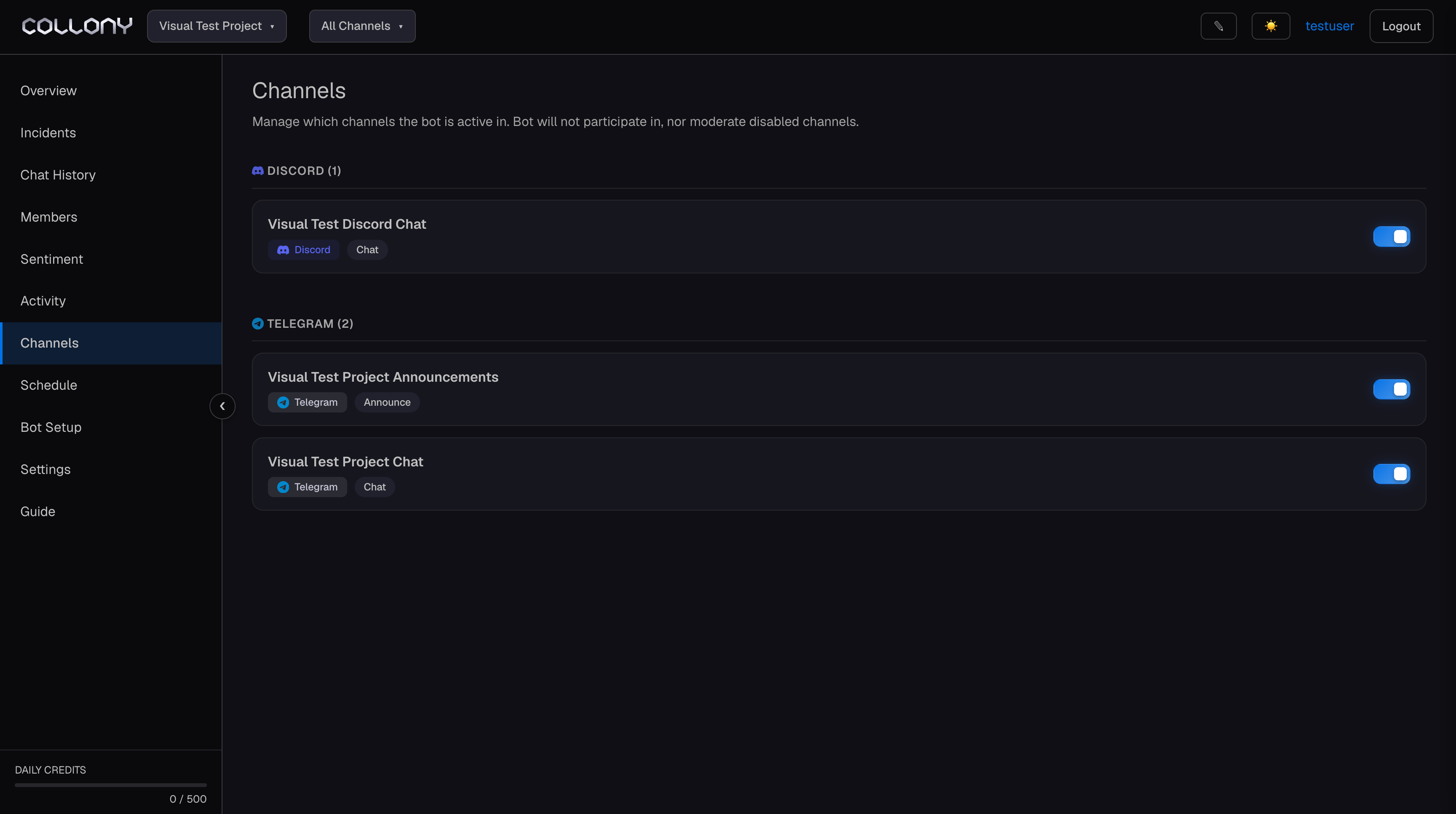
The Channels page lists every channel the bot has access to within the current project, grouped by platform. Each channel can be individually enabled or disabled.
 ## Enabling and disabling channels
Toggle any channel on or off. When a channel is **disabled**, the bot does not read messages, moderate content, or respond in that channel. It remains in the group or server but is completely inactive.
Use this to:
* Run collony in your main community chat while keeping it out of staff or internal channels.
* Temporarily pause moderation in a specific channel without removing the bot.
* Scope analytics and incident tracking to channels that matter.
Changes take effect within a few minutes. The bot does not notify the channel when it's enabled or disabled.
## Channel types
Each channel is labeled with its platform (Discord or Telegram) and type (chat). Additional channel types may appear depending on your server configuration.
New channels added to a project after initial setup appear here automatically once the bot has access to them.
## Enabling and disabling channels
Toggle any channel on or off. When a channel is **disabled**, the bot does not read messages, moderate content, or respond in that channel. It remains in the group or server but is completely inactive.
Use this to:
* Run collony in your main community chat while keeping it out of staff or internal channels.
* Temporarily pause moderation in a specific channel without removing the bot.
* Scope analytics and incident tracking to channels that matter.
Changes take effect within a few minutes. The bot does not notify the channel when it's enabled or disabled.
## Channel types
Each channel is labeled with its platform (Discord or Telegram) and type (chat). Additional channel types may appear depending on your server configuration.
New channels added to a project after initial setup appear here automatically once the bot has access to them.